Address
Arusha Njiro
Work Hours
80 Hours A week
Address
Arusha Njiro
Work Hours
80 Hours A week

 ByIziraa
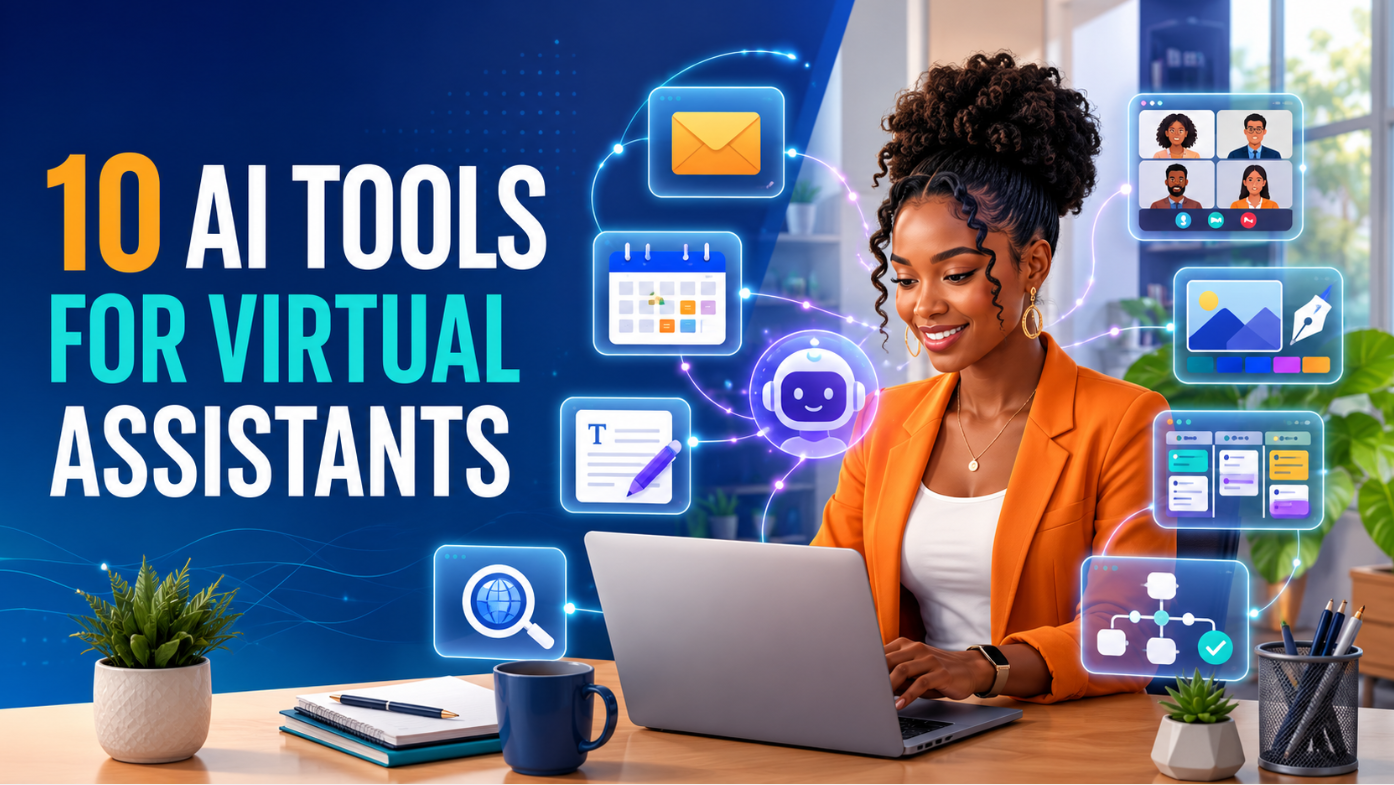
The best AI tools for virtual assistants do not replace reliability, judgement or communication. They help a capable assistant complete repeated work faster while keeping the client in control. ChatGPT is the strongest general starting tool. Google Workspace with Gemini and Microsoft 365 Copilot are valuable when clients work inside those office ecosystems. Canva AI supports visual tasks, Otter.ai helps with meeting records, and Zapier connects approved workflows.
However, a virtual assistant does not need ten paid subscriptions. Learn what each platform can do, then build a small stack around the services clients actually buy. A beginner can often start with one general AI assistant, the office suite a client already uses and one specialist tool. Add automation only after understanding the manual process.
Quick recommendation: Learn ChatGPT first, become competent in either Google Workspace with Gemini or Microsoft 365 Copilot, and then choose one specialist skill—design, meeting support, research, project coordination, scheduling or automation.
| Tool | Best VA use | Learn it when | Main caution |
|---|---|---|---|
| ChatGPT | Drafting, planning, summarising, research support and file work | You need one flexible starting assistant | It can produce convincing errors |
| Google Workspace with Gemini | Gmail, Docs, Sheets, Drive and Meet support | Clients use Google Workspace daily | Features depend on account, plan and permissions |
| Microsoft 365 Copilot | Outlook, Word, Excel, PowerPoint and Teams tasks | Clients use Microsoft 365 | Copilot products and licences are not identical |
| Grammarly | Grammar, clarity, tone and final communication checks | You write many emails, reports or posts | A polished sentence can still contain a wrong fact |
| Canva AI | Social graphics, presentations, flyers and simple brand content | Clients need regular visual assets | Generated designs require text, brand and rights checks |
| Otter.ai | Meeting transcription, summaries and action items | You support meetings or interviews | Obtain consent and verify names, numbers and decisions |
| Perplexity | Source-linked web research and quick briefings | Clients need current information with visible sources | Citations can be weak, outdated or misinterpreted |
| ClickUp Brain | Tasks, documents, workspace knowledge and project updates | A client already runs work in ClickUp | AI cannot repair unclear ownership or poor project data |
| Motion | Calendar planning, task prioritisation and time blocking | Scheduling is a major part of the role | Automatic scheduling still needs human judgement |
| Zapier AI | Connecting apps and automating repeatable workflows | A process is stable and approved | Automation can repeat an error at scale |
Product names, plans, prices, limits and regional availability change. Check the official product page before paying. A virtual assistant should understand all ten categories but subscribe only to the tools required for real client work.
This list focuses on work clients regularly delegate: inbox support, document preparation, scheduling, meeting follow-up, online research, content design, project tracking and repetitive administration. Each tool solves a recognisable problem and allows a person to review the result.
The tools were assessed using six practical criteria:
AI competence is not the ability to type a clever prompt. It is the ability to define a task, provide approved context, notice missing information, check the output and deliver work in the client’s preferred system. Readers who are completely new to generative AI can begin with Iziraa’s guide to using ChatGPT for beginners.
ChatGPT is the best first tool because it can support many low-risk administrative and creative tasks before a virtual assistant invests in specialist platforms. It can organise rough instructions, draft messages, compare options, summarise approved material, analyse files and create structured deliverables.
Official OpenAI guidance explains that ChatGPT can draft, research, analyse materials and work with files, projects and web search. It also advises users to review results and verify important names, numbers, dates and claims. That combination—broad usefulness plus mandatory checking—fits virtual-assistant work well.
Act as an administrative drafting assistant. Using the notes below, prepare a concise client-update email in British English. Keep all names, dates and amounts exactly as supplied. Separate completed work, work in progress, blockers and decisions needed. Do not invent progress. Put any missing fact in square brackets for me to complete before sending.
The prompt works because it defines the role, output, language, factual boundaries and review points. Iziraa’s 25 ChatGPT prompts for a more productive working day gives assistants additional patterns for emails, meetings and planning.
Create a portfolio sample containing a messy fictional brief, your prompt, the AI-assisted draft and the corrected final version. Explain the checks you performed. Never use a real client’s private data in a public portfolio.
Best for: General administration, structured drafting, planning and file-based assistance.
Gemini becomes especially useful when a client’s work already lives in Gmail, Google Docs, Sheets, Drive and Meet. The benefit is not merely access to another chatbot. It is the ability to assist within the documents, email and spreadsheets where work is happening.
Google’s official Workspace guidance describes AI-assisted drafting and revision. Gemini in Docs can work with relevant context from Drive and Gmail, while Gemini in Sheets can create tables and formulas, summarise information, categorise data and generate insights. Availability depends on the account, plan, location and administrator settings.
First identify the sender, purpose, deadline, relationship and required response. Ask Gemini for a draft, then compare every claim with the original thread. Remove unnecessary detail, check attachments and confirm the recipient before sending. AI should not independently decide whether a message creates a contractual commitment.
Build a fictional client-onboarding system with a Gmail response template, a Docs checklist and a Sheets tracker. Show how information moves between them without exposing personal data.
Best for: Assistants serving clients who rely on Google Workspace.
Microsoft 365 Copilot is worth learning when clients use Outlook, Word, Excel, PowerPoint and Teams. Microsoft’s documentation describes it as AI assistance that can use web content and work content a user has permission to access, within the context of Microsoft 365 applications.
The name requires care. Microsoft 365 Copilot and Copilot Chat are different experiences, and licences determine access to organisational content and in-app features. Iziraa’s detailed Microsoft Copilot versus ChatGPT comparison explains the distinction for Word, Excel, PowerPoint, Outlook and Teams.
An assistant must understand the worksheet before trusting AI suggestions. Check ranges, filters, currencies, missing values and formula references. Recalculate totals and compare a sample manually. A professional-looking chart does not prove that the underlying data is correct.
Prepare a fictional weekly operations pack: an Outlook summary, a one-page Word brief, a cleaned Excel tracker and a short PowerPoint update. Keep the same facts consistent across all four files.
Best for: Executive and administrative assistance inside Microsoft 365.
Grammarly is useful after the assistant understands the message. It checks spelling, grammar, clarity and tone across common writing environments. Its AI features can also rewrite for length, formality and tone.
This makes it practical for customer replies, proposals, reports, social captions and internal messages. Nevertheless, Grammarly should be a final communication layer—not the source of business facts or client decisions.
Writing software can make an incorrect sentence sound confident. Recheck dates, names, prices, policies, links and promises after rewriting. If the client uses a distinctive voice, keep a short approved style guide with preferred greetings, spelling, sentence length and phrases to avoid.
Iziraa’s guide on making ChatGPT sound more human explains why audience, purpose, context and real examples produce better writing than vague instructions to “sound human”.
Best for: Email-heavy roles, customer support and document polishing.
Many clients expect a virtual assistant to prepare simple social graphics, presentations, flyers, lead magnets or branded documents. Canva AI helps turn an approved message into editable layouts and visual options. It is especially useful for assistants who are not specialist designers but need to produce clear routine assets.
Canva’s official AI pages describe conversational design assistance, prompt-based design, text generation and editable visual creation. The human assistant remains responsible for readability, brand consistency, factual accuracy and the rights to use assets.
Confirm the purpose, audience, platform, dimensions, message and call to action before opening the tool. Generate two or three options, choose the clearest one and inspect every word. Check logos, faces, hands, products, charts and contact details at full size. Keep important text inside a crop-safe area.
Create a small fictional launch kit: one square post, one story graphic, one email header and a five-slide presentation. Use the same visual identity and explain how each format serves a different purpose.
Best for: Social-media support, presentations and simple marketing assets.
Otter.ai can automatically join supported Zoom, Google Meet or Microsoft Teams meetings, transcribe speech, produce summaries and help extract action items. For a virtual assistant who supports meetings, this can reduce the pressure of writing every sentence while still following the discussion.
The tool is not a silent substitute for consent. Participants should know when a meeting is recorded or transcribed, and the client’s rules and applicable law must be followed.
Transcripts can mishear names, accents, numbers and specialist vocabulary. A summary may also treat a suggestion as a decision. Compare action items with the audio or meeting notes, label uncertain wording and ask the chair to approve the final minutes.
Best for: Meeting support, interviews and post-call administration.
Perplexity is an AI-powered search tool that answers questions with numbered links to sources. That makes it useful for an assistant preparing a first research brief, because the client can see where information came from.
Its official help guidance says answers include citations that link to original sources. This improves traceability but does not guarantee that every source is authoritative or that the summary accurately represents it.
Before delivering research, apply this simple test:
For academic references, use the stricter workflow in Iziraa’s guide to AI citation tools you can trust.
Best for: Current web research where visible source links matter.
ClickUp Brain is useful when a client’s tasks, documents, comments and project updates already live in ClickUp. Its central advantage is workspace context: it can help find information, draft updates, create tasks and summarise work without repeatedly rebuilding the project background.
ClickUp’s official product information describes AI working across tasks, documents, chat, calendars, email and connected applications while respecting workspace permissions. That makes the tool relevant to assistants supporting several workstreams.
AI cannot repair a workspace where tasks have no owners, deadlines are imaginary and completed work is never updated. Establish naming rules, statuses, owners and due-date expectations first. Then use AI to reduce administration around the system.
Best for: Project coordinators and VAs whose clients already use ClickUp.
Motion combines tasks with a calendar and automatically places work into available time based on priorities, duration and deadlines. It can be useful for executive assistants or virtual assistants who help clients protect focus time and manage shifting workloads.
Motion’s official product pages describe AI task planning, calendar assistance, project management and rescheduling when priorities change. These features are most valuable when the calendar and task list are accurate.
An algorithm does not automatically know that a client needs preparation time, travel time, recovery between calls or flexibility for an urgent customer. Record realistic task durations and review the plan rather than treating every available minute as bookable.
Best for: Calendar-heavy assistance and clients who need disciplined time blocking.
Zapier connects applications through workflows triggered by events. AI steps can classify text, draft content or make a limited judgement inside an automation. Its official examples include lead capture, support-ticket triage, social publishing and support-email assistance.
This is the most advanced tool on the list because it can take actions across systems. Learn it after becoming reliable at the manual process.
Use three steps before activating a workflow:
Do not automate payments, deletion, legal commitments, sensitive messages or account changes without explicit authority and strong safeguards. Automation should reduce repeated work, not hide responsibility.
Best for: Experienced assistants managing stable, repeated processes across apps.
A beginner should learn in layers.
Do not buy all of these at once. A client may provide access to business software through its own approved account. Using a personal account to process business data can create ownership, privacy and offboarding problems.
Virtual assistance can also be a practical remote-work path. Readers exploring the field can review Iziraa’s expert remote-working resources and the guide to part-time jobs in Tanzania. Job applicants should never pay someone who promises guaranteed employment.
Choose one:
Complete three realistic tasks and document the checks you made.
At the end of 30 days, the assistant should have three to five polished samples, not merely ten accounts.
Virtual assistants may handle calendars, inboxes, customer details, documents and internal discussions. That access creates responsibility.
Ask which platforms are permitted. Do not quietly upload company information to a personal AI account because it is convenient.
Remove personal identifiers, credentials, financial details and confidential strategy unless the approved workflow genuinely requires them.
Use a recognised password manager and client-controlled access. Prefer delegated permissions over receiving the owner’s main login.
Before sending, sharing or scheduling, check the person, email address, time zone, file permissions and attachment.
Important external messages, purchases, public posts, changes to records and contractual language should be reviewed by an authorised person.
AI can invent details, misread a spreadsheet or misunderstand a meeting. Open the original source and compare.
Document triggers, actions, connected accounts, owners, failure alerts and the shutdown process. Remove access promptly when a client relationship ends.
Iziraa’s guide to ChatGPT memory, privacy and safer use explains why memory, chat history, training choices and data retention should be reviewed separately.
Clients usually care about outcomes more than tool badges. A strong portfolio should show a business problem, the process used, the finished deliverable and the quality checks.
Create fictional samples such as:
For every sample, state what AI helped with and what you checked manually. Avoid claiming “expert” status after watching tutorials. Competence means you can complete a task consistently, protect information, explain limitations and recover when the tool fails.
Most platforms now draft, summarise and generate content. Choose tools around workflows, not feature lists.
First outputs often contain generic wording, missing context or unsupported assumptions. Edit them.
An assistant must understand professional email, spreadsheet basics, scheduling and project administration. Otherwise, errors are difficult to recognise.
If staff handle a process differently every time, automation will make the confusion faster.
Professional does not mean robotic. Use approved examples and keep the client’s natural communication style.
A linked source may not support the sentence. Open it and check.
ChatGPT is the best general starting tool because it supports drafting, planning, summarisation, research support and file-based tasks. The best specialist tool depends on the client’s office system and the service being delivered.
They should understand the categories but do not need paid mastery of every product. Learn one general assistant, the client’s office suite and one or two specialist tools first.
AI can automate parts of drafting, scheduling, research and administration. Clients still need people who understand context, protect information, communicate clearly, manage exceptions and take responsibility for delivery.
Gemini is useful inside Gmail, Microsoft 365 Copilot supports Outlook, ChatGPT can draft structured replies, and Grammarly checks clarity and tone. The client should approve access and sending rules.
Otter.ai is a practical specialist option for transcription, summaries and action items. Assistants should obtain permission, correct the transcript and verify decisions before distributing minutes.
Perplexity is useful for quick source-linked web research, while ChatGPT can help structure a brief. Important claims should be checked using original, authoritative and current sources.
A beginner can learn simple Zapier workflows, but automation should begin with a low-risk, well-understood process. Use sample data and require approval before external actions.
Free plans can be enough for practice and light work, but limits, commercial terms and privacy controls vary. A client may need to provide an approved business account.
Passwords, authentication codes, full customer lists, private financial records, confidential contracts, sensitive employee information and other restricted material should not be uploaded without explicit authority and an approved arrangement.
Build a small portfolio using fictional data, describe clear services, show your review process and apply selectively to legitimate opportunities. Sell a dependable outcome—such as meeting follow-up or inbox support—not vague “AI expertise”.
The ten AI tools every virtual assistant should learn represent ten parts of modern remote work. ChatGPT provides the broadest starting point. Gemini and Microsoft 365 Copilot support the two major office ecosystems. Grammarly improves communication, Canva AI supports visual content, Otter.ai captures meetings, Perplexity accelerates research, ClickUp Brain organises project context, Motion helps plan time and Zapier connects repeatable workflows.
The strongest virtual assistant is not the person with the most subscriptions. It is the person who selects the right tool, protects client information, verifies the result and delivers work on time. Start with a small stack, practise realistic assignments and add tools only when a service or client creates a genuine need.