Address
Arusha Njiro
Work Hours
80 Hours A week
Address
Arusha Njiro
Work Hours
80 Hours A week

 ByIziraa
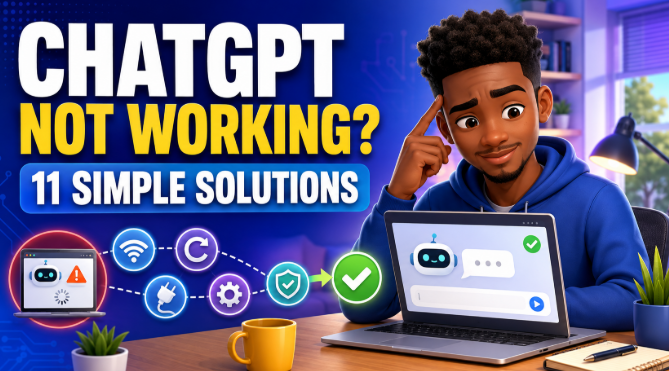
If ChatGPT is not working, first check the official OpenAI status page. If no incident is reported, refresh ChatGPT, start a new conversation, test a private browser window and temporarily disable extensions or network filters. Most blank screens, login loops, endless loading and response errors can be isolated without changing your subscription or deleting your account.
Do not try every solution at once. Start with the quick checks, test ChatGPT after each change and stop when it works. This approach shows what caused the problem and prevents unnecessary changes to your device.
| What you see | Likely cause | Try first |
|---|---|---|
| ChatGPT will not open for anyone | OpenAI service incident | Solution 1 |
| One response stays on “Thinking” or “Working” | Temporary response or conversation problem | Solution 2 |
| Blank, frozen or endlessly loading page | Cached page, extension or browser problem | Solutions 3, 5, 6 and 7 |
| “Error generating a response” | Temporary service, network or browser interference | Solutions 1, 2, 3 and 8 |
| Login loop or “wrong authentication method” | Incorrect sign-in method, cookies or network filtering | Solutions 4, 5 and 8 |
| ChatGPT works on mobile data but not Wi-Fi | Router, firewall, proxy or workplace/school network | Solutions 8 and 9 |
| One feature or model is unavailable | Usage limit, plan, rollout or workspace permission | Solution 11 |
| Mobile or desktop app keeps crashing | Old or damaged app installation | Solution 10 |
ChatGPT can stop working because of an OpenAI incident, an unstable internet connection, corrupted site data, a browser extension, a VPN or proxy, an outdated application, a login-method mismatch or an account-specific limit. The visible symptom does not always reveal the cause. For example, an endless spinner may come from the service, the current conversation or a blocked network connection.
Therefore, troubleshoot by separating possible causes. Ask four questions:
The answers identify whether the problem is mainly with the service, conversation, browser, device, network or account.
If you are new to the platform and may be unsure how it normally behaves, begin with Iziraa’s guide to using ChatGPT for beginners. It explains the basic interface, prompts, files and safety checks before you diagnose a technical problem.
Check OpenAI’s live status page before changing anything. If an active ChatGPT incident is listed, the fault may be outside your browser, phone or account.
Open status.openai.com and look under ChatGPT. The page reports current incidents and keeps a service history. However, OpenAI notes that its availability figures are aggregated. Consequently, your experience may differ by plan, model and feature even when the main page appears operational.
When an incident is active:
You can also test whether other reliable users are experiencing the same symptom. Nevertheless, treat the official status page as the primary source. Social posts may be old, regional or unrelated to your problem.
Result: If an incident is reported, wait and monitor it. If no relevant incident appears, continue to Solution 2.
If only one answer is stuck, restart that response before restarting the whole device. A single conversation can fail even when the rest of ChatGPT works.
OpenAI’s ChatGPT error-message guidance recommends waiting briefly, stopping the generation and retrying. If necessary, start a new conversation and resend the prompt.
Try this sequence:
A very long conversation may contain more context than the task needs. Starting a fresh chat removes that history and helps reveal whether the problem belongs to one thread. You can preserve the essential context with a short summary:
Continue this task using the following facts: [insert only the information needed]. Produce [desired result] in [format].
If the new chat works, the account and internet connection are probably functioning. Continue there instead of repeatedly reopening the faulty thread.
Researchers who regularly work with long instructions can organise them using Iziraa’s ChatGPT prompts for academic researchers. A focused prompt is easier to retry, verify and move into a clean conversation.
Result: If all new conversations fail, continue to Solution 3.
A hard refresh replaces the loaded page and often fixes a frozen interface. It is faster and less disruptive than clearing all browser data.
On a Windows or Linux browser, press Ctrl + Shift + R. On a Mac browser, press Command + Shift + R. You can also hold Shift while selecting the browser’s reload button. If you use the desktop or mobile app, close it fully and reopen it.
Before refreshing, copy any unsent prompt into a notes application. Text in the message box may disappear when the page reloads.
Then test one simple request:
Reply with the word “working” and today’s date.
The purpose is not to assess answer quality. It is to determine whether ChatGPT can receive a prompt and return any response. If the simple prompt works but a complex file or request does not, the issue may concern that specific feature, attachment or task.
Result: If the page remains blank or frozen, try a private window in Solution 5. If you cannot sign in, complete Solution 4 first.
Sign out and return using the same method used to create the account. A Google, Microsoft or Apple account is not automatically interchangeable with an email-and-password login.
OpenAI’s login troubleshooting guide says that users who registered with “Continue with Google,” “Continue with Microsoft” or “Continue with Apple” should keep using that method. Apple’s Hide My Email feature may also associate the account with a private relay address.
Follow these checks:
chatgpt.com website or official app.If you see “wrong authentication method,” do not keep creating new accounts. Try the original provider in a private window. Also check whether your school or employer invited a different email address to its workspace.
If a security warning follows several failed attempts, stop retrying rapidly. OpenAI advises waiting before another attempt and using a trusted network without a VPN. Never send a password, one-time code or recovery code to a person claiming they can repair ChatGPT.
Result: If login works in a private window but not normally, cookies or extensions are the likely cause. Continue with Solutions 6 and 7.
A private window is a quick diagnostic test for browser-state problems. It normally starts with fresh site data and disables many extensions by default.
Open a private window in your browser, visit https://chatgpt.com/ directly and sign in. Avoid following a login link from an unknown message or advertisement.
If ChatGPT works privately, the OpenAI service and your account are probably available. The likely causes include:
Private browsing is a test, not necessarily a permanent solution. Work through Solutions 6 and 7 to repair the normal window.
If ChatGPT fails in both normal and private windows, try a current version of another mainstream browser. This comparison helps isolate a browser-specific problem without immediately reinstalling anything.
Result: Works privately = investigate extensions and site data. Fails everywhere = continue with the network and device checks.
Browser extensions can block scripts, change page content or interrupt authentication. Temporarily disable them, then reload ChatGPT.
Prioritise extensions that:
Disable one extension at a time when possible. After each change, hard-refresh ChatGPT and send a simple test prompt. If the service begins working, re-enable the other extensions and leave only the conflicting one disabled for ChatGPT.
Do not remove a school or employer’s required security software without permission. Instead, show the error to the responsible administrator. OpenAI’s network guidance explains that managed filters may need correctly configured access to ChatGPT domains and secure WebSocket traffic.
For broader technical support in Tanzania, Iziraa’s overview of online AI and IT assistants can help readers understand remote assistance. Before allowing anyone to control a device remotely, verify the provider, close private files and understand what access is being requested.
Result: If no extension causes the fault, re-enable the extensions you trust and continue to Solution 7.
Clear ChatGPT’s site data when refreshes and private-window testing indicate corrupted browser data. Start with the data for ChatGPT rather than deleting the entire browser history.
Browser menus differ, but the general process is:
chatgpt.com and related OpenAI authentication domains.Clearing site data normally signs you out. Therefore, make sure you know the correct login method before doing it. Copy unsent prompts first. Do not clear saved passwords unless that is intentional.
OpenAI specifically recommends clearing ChatGPT site data when the page is blank, frozen or endlessly loading. The separate slow-response guide also identifies outdated cached data as a common cause of unexpected behaviour.
Important work should not exist in only one browser tab. Iziraa’s guide to computer data backup services in Tanzania explains why essential documents need a separate, reliable copy.
Result: If clean site data does not help, investigate the network in Solutions 8 and 9.
A VPN or network filter can interrupt ChatGPT connections, verification and response streaming. Temporarily disable it only when doing so is safe, permitted and consistent with your organisation’s rules.
OpenAI advises testing without VPNs, proxies, secure DNS tools and security filters when ChatGPT is slow, stuck or producing response errors. The official network recommendations also explain that some ChatGPT features depend on secure WebSocket connections.
Use this safe test:
Do not weaken a company or school firewall yourself. If ChatGPT works on personal mobile data but fails on the managed network, give the symptom, time and affected site to the IT administrator. They can review allowlists, TLS inspection, WebSocket policies and other controls.
If privacy is your main concern, do not assume that disabling one network tool makes it safe to paste sensitive data into ChatGPT. Read Iziraa’s guide on protecting personal data from AI scraping and provide only information necessary for the task.
Result: If ChatGPT still fails without the filter, compare networks and devices.
Changing one part of the setup reveals where the fault lives. Test ChatGPT on another trusted network or device instead of assuming that a weak signal is the only possible cause.
Useful comparisons include:
Interpret the result carefully:
| Test result | What it suggests |
| Works on mobile data, not Wi-Fi | Router, DNS, firewall or provider issue |
| Works on phone, not computer | Browser, extension, computer security or app issue |
| Works in one browser only | Browser profile, cookie or extension problem |
| Fails on every device using one account | Account, service or plan issue may be involved |
| Fails for several accounts on every network | Wider service problem may be involved |
Restarting the router may help with an ordinary home connection. However, do not reset workplace or school network equipment. Ask the administrator instead.
For people who depend on AI for remote work, network reliability is part of the job setup. Iziraa’s remote-work opportunities guide for Tanzanians discusses the broader importance of reliable internet, digital skills and troubleshooting.
Result: If the problem affects only one application installation, update or reinstall it.
Use the current official app or an updated browser when older software repeatedly crashes or cannot load ChatGPT. Updating should come before reinstalling because it is quicker and usually preserves settings.
For a mobile or desktop app:
For a browser, install its current stable update and restart it. Avoid downloading “ChatGPT repair tools,” unofficial modified applications or browser packages from unknown sites. They may collect login information or install unwanted software.
Before uninstalling, save unsent prompts and any locally downloaded outputs. Conversations linked to the correct account may reappear after login, but unsent text and expired download links may not.
ChatGPT-generated download links can expire. Therefore, download important files promptly and store them safely. Students using AI for coursework may also find Iziraa’s comparison of the best AI tools for accounting students useful when one tool or feature is temporarily unavailable.
Result: If the updated app fails across multiple networks, examine account limits or contact Support.
A missing feature is not always a technical failure. Usage limits, plan differences, staged rollouts, workspace permissions and security reviews can make a model or tool temporarily unavailable.
Read the message shown beside the unavailable feature. OpenAI’s model and feature access guidance explains that a disabled option may indicate a usage limit and reset time. In that case, wait until the stated time or choose another available option. Do not purchase a new subscription unless you understand the actual restriction and the plan genuinely meets your needs.
For a school or workplace account, ask whether an administrator controls the model, file, image, web or connector feature. A tool can be available to one account and absent from another because their plans and workspace settings differ.
Contact OpenAI Support when the problem:
Use the chat control at help.openai.com to contact Support. Include:
OpenAI may ask for browser console information or a HAR file. Its support guide warns that HAR files may contain sensitive data. Use the browser’s sanitised export where available, inspect the file-sharing request and never post diagnostics publicly.
Result: A complete report helps Support distinguish a service, browser, network, account or feature issue without repeating basic questions.
If you need a short version, use this order:
status.openai.com.If the private window works, repair the normal browser by checking extensions and ChatGPT site data. AND IF another network works, investigate the VPN, proxy, router or managed firewall. If nothing works and no outage appears, review account limits and contact Support.
Avoid turning a small temporary fault into a larger security or data problem.
Do not:
AI services change, and occasional interruptions do not prove that every AI tool has failed. For a wider discussion of how AI is changing digital work, read Iziraa’s analysis of the AI revolution and online jobs.
First check the official OpenAI Status page for an active incident. If no relevant incident appears, test a new chat, refresh the page and open ChatGPT in a private window. The cause may be local even when the symptom appears suddenly.
The response, current conversation, network stream or service may have stalled. Wait briefly, stop the generation, regenerate once and try the prompt in a new chat. Then refresh the page and check OpenAI Status if every conversation is affected.
A blank screen commonly points to stale site data, a browser extension, a content blocker, a VPN or a temporary service fault. Hard-refresh the page, try a private window, disable extensions and clear ChatGPT site data if needed.
Use the same authentication method used at registration. For example, continue with Google if the account was created with Google. Also test a private window, disable VPNs and blockers, allow required cookies and check OpenAI Status.
Clearing ChatGPT site data signs you out and removes local browser state. Conversations associated with the correct account normally remain account-linked, but unsent prompts can disappear. Copy unsent work and confirm your login method first.
The computer may have a conflicting extension, damaged browser data, older browser, firewall or security filter. Test a private window and another updated browser. If both devices use different networks, compare the networks as well.
The Wi-Fi router, DNS service, firewall, proxy or network policy may be blocking or interrupting ChatGPT. Restart a home router if appropriate. For a managed school or company network, report the issue to the administrator instead of changing security controls.
The file may exceed a current limit, use an unsupported format, trigger an account limit or be blocked by the browser or network. Test a smaller non-confidential file, refresh the page, use a private window and disable VPN or filtering tools temporarily. Check the exact message and current official guidance because limits can change.
Features can differ by plan, workspace permission, account, device, country and rollout. You may also have reached a usage limit. Read the message displayed in ChatGPT, check your account and workspace, and consult current official documentation.
Possibly, but not always. Compare another website, network and device, then check OpenAI Status. Browser extensions, cached site data, long conversations and temporary service demand can also affect response speed.
Visit help.openai.com and use the support chat control. Provide the error, time, device, browser or app version and the tests already completed. Remove private information from screenshots and diagnostics.
Before contacting Support, confirm that you have:
When ChatGPT is not working, begin with the least disruptive checks. Confirm whether OpenAI has an incident, retry the response in a new conversation and refresh the page. Next, use a private window to separate browser problems from account or service problems.
If the fault continues, test extensions, site data, network filters, another connection and an updated app. Finally, check visible usage limits or workspace permissions. Contact OpenAI Support with precise diagnostics only after the problem survives those comparisons.
The most useful troubleshooting question is not simply “Why is ChatGPT broken?” It is “Does the problem follow the conversation, browser, device, network or account?” Each test narrows the answer and moves you closer to the correct fix.