Address
Arusha Njiro
Work Hours
80 Hours A week
Address
Arusha Njiro
Work Hours
80 Hours A week
 ByIziraa
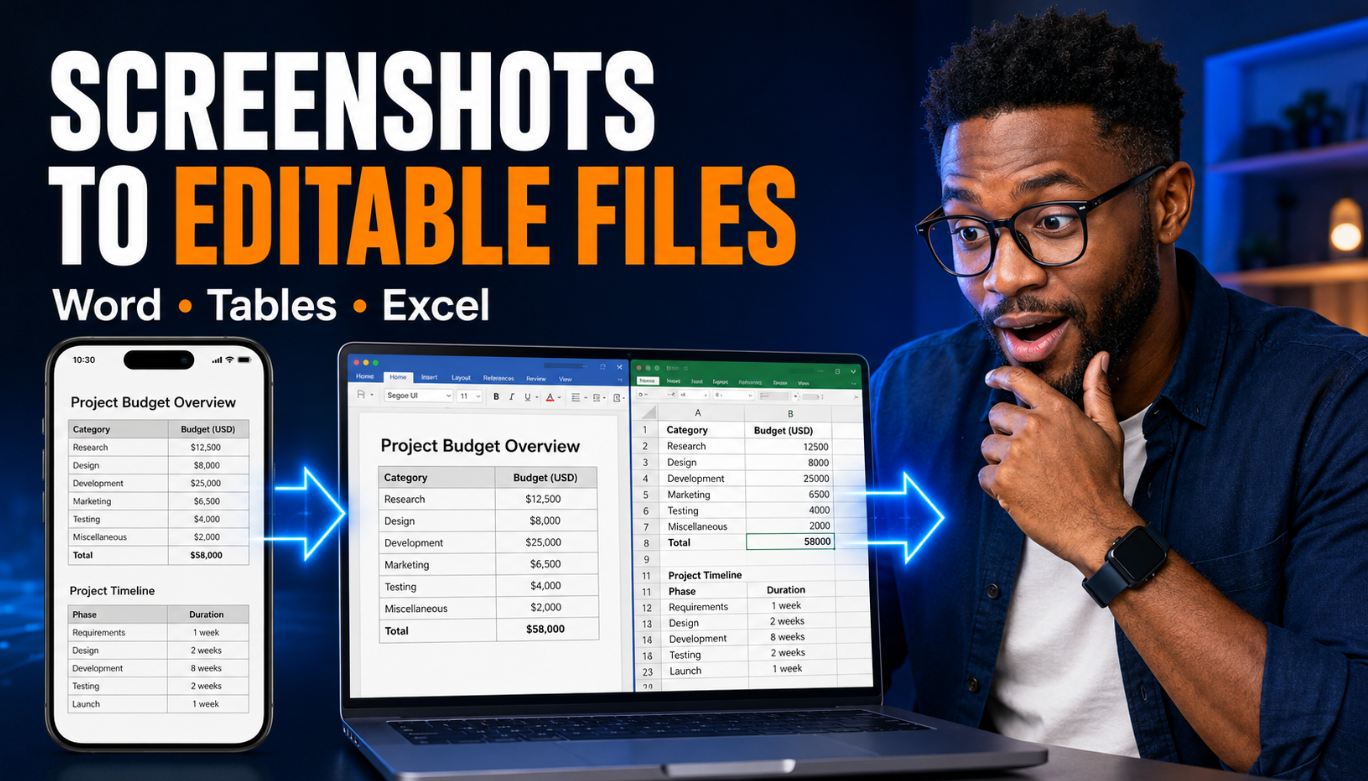
A colleague sends a screenshot of a meeting agenda. A lecturer photographs a printed marks table. A small business owner has a mobile-money statement visible only as an image. The information can be read, but it cannot be searched, sorted, corrected or reused without typing it again.
ChatGPT can shorten that job. Upload the screenshot, describe the desired output and ask it to reconstruct the content as an editable document or table. OpenAI’s official image and vision guidance confirms that current vision-capable models can analyse image inputs. Its developer quickstart also identifies text extraction as a supported image-and-file task.
However, the best workflow is not simply “read this image”. Screenshots may contain tiny type, blurred numbers, merged cells, cropped headings, handwriting or visual decorations that confuse structure. ChatGPT may also produce a plausible value when it should report uncertainty. Therefore, the conversion must include a quality check.
This guide introduces an EDIT method: Examine the source, Define the output, Interpret cautiously and Test the result. It explains how to turn screenshots into editable documents, tables and spreadsheets without treating an attractive reconstruction as proof of accuracy.
Quick answer: Upload the clearest original screenshot, state whether you need Word, Excel, CSV, Markdown or plain text, and tell ChatGPT to preserve the wording and table structure without guessing. Ask it to mark unreadable content as
[UNCLEAR], produce a verification list and create the requested editable file. Then compare names, dates, numbers, totals, row labels and merged cells with the screenshot before using the result.
.docx, .xlsx, .csv, Markdown or plain text.[UNCLEAR] or confidence flags instead of invented words and numbers.Yes—when the selected ChatGPT experience supports image input, it can analyse visible text, objects and layout. The practical result resembles optical character recognition, or OCR, but ChatGPT can go further than basic character extraction. It can infer headings, rebuild a table, organise paragraphs, label sections and generate a new file.
That extra reasoning is useful, but it introduces a trade-off. Traditional OCR may return messy characters. A language model may return cleaner language while silently regularising a spelling, completing a cropped phrase or aligning a number with the wrong row. The output can look more convincing even when one field is wrong.
Therefore, use two distinct stages:
Do not ask for transcription, correction, summarisation and analysis in one vague instruction. Separating the stages makes errors easier to locate.
If you are still learning how attachments and prompts work, Iziraa’s guide on how to use ChatGPT for beginners provides a useful foundation before attempting complex document reconstruction.
The method works for many ordinary sources:
The output format should match the future task. Use Word or Google Docs for prose that needs editing. Use Excel, CSV or Google Sheets for data that must be filtered, calculated or charted. En Use Markdown for a website draft. Use plain text when layout does not matter.
| Screenshot content | Best editable output | Why it fits |
|---|---|---|
| Letter, report or minutes | Word document | Preserves headings, paragraphs and lists |
| Data grid or register | Excel workbook | Supports sorting, formulas, validation and formatting |
| Simple table for import | CSV file | Portable and easy to load into other systems |
| Web article section | Markdown | Keeps headings, links and lists easy to publish |
| Form | Word table or structured document | Retains labels, sections and fillable spaces |
| Slide text | PowerPoint or outline | Supports presentation editing and redesign |
| Unstructured notes | Plain text or Word | Prioritises readable content over visual replication |
For a data-heavy conversion, Iziraa’s guide on using ChatGPT with Excel explains what to do after the rows and columns have been reconstructed.
Inspect the image before uploading it. Can you read the smallest text at normal zoom? Is the page upright? Are the left and right edges visible? Does a floating menu cover any cells? Are totals cut off at the bottom?
Improve the source first:
OpenAI’s vision documentation warns that small text and rotated images are harder to interpret. This is why a better screenshot often improves the result more than a longer prompt.
Tell ChatGPT exactly what “editable” means for your task. A document can be editable while still being inconvenient. For example, a table pasted into Word as tab-separated text is editable, but it may not behave like a genuine table.
Define:
For example, say: “Create an .xlsx workbook with one row per employee and the columns Name, Department, Days Present and Overtime Hours. Preserve empty cells. Do not calculate missing values.” That instruction is safer than “turn this into Excel”.
Tell the model what it must not infer. This matters most when a screenshot is incomplete or visually ambiguous.
Use rules such as:
[UNCLEAR] for an unreadable value;[PARTIAL] when only part of a phrase is visible;Ask for a confidence report containing the page, row, column and questionable value. The model may not provide mathematically calibrated probabilities, so a simple high, medium or low visual-confidence label is more practical than a false-looking percentage.
ChatGPT can still make confident errors. Iziraa’s guide on why ChatGPT makes things up explains why uncertainty instructions and source checking must be built into the workflow.
Verification is the final stage, not an optional improvement. Compare the output with the screenshot systematically rather than glancing at both documents.
Check:
For a financial or research table, calculate column totals independently. A total that matches is encouraging, but it does not prove every row is correct because two errors can cancel each other. Sample cells throughout the table and review every high-impact field.
Use screenshots you own, created or are authorised to process. Do not reproduce a copyrighted book, paid report or private record merely because it can be captured on screen. A conversion changes the format; it does not remove copyright, confidentiality or data-protection responsibilities.
Crop or blur passwords, authentication codes, account balances, identity numbers, student records, medical details and private contact information that the task does not require. If the sensitive field must be processed, confirm that the service and account settings are appropriate for the information.
OpenAI publishes separate data-control documentation for its developer platform. In ChatGPT, review the privacy and data settings available in your own account or managed workspace before submitting confidential material.
Use native screen capture where possible. Avoid photographing a monitor because reflections, perspective and pixel patterns reduce clarity. When the source is printed, photograph it in even light, hold the camera parallel to the page and fill the frame without cutting the edges.
State what the screenshot contains and where structure matters. For example:
This is one screenshot of a two-page meeting agenda. It contains a title, meeting details, a numbered agenda and a three-column action table. Transcribe only what is visible.
That short description gives the model a structural map without feeding it the answer.
Ask for visible wording in reading order. Require uncertainty markers. Do not request grammar corrections during this pass because they can hide OCR mistakes.
Zoom into every [UNCLEAR] or low-confidence region. Upload a tighter crop if necessary. If you know the correct value from another authorised source, provide it explicitly and ask the model to record the correction in a change log.
Compare the extracted text with the screenshot. Confirm headings, names, dates and numbers. This creates a reliable source layer for the next stage.
Ask ChatGPT to format the approved transcription as a real document with heading styles, paragraphs, lists and tables. State whether you want close visual replication or a clean modern layout.
Where file creation is available, ask for an editable .docx. Otherwise, copy the structured response into Word or Google Docs. Check that tables remain tables and that heading styles are usable in the navigation pane.
For a wider view of file creation, permissions and human approval, Iziraa’s article ChatGPT Work explained shows why generating a file is only one part of completing a dependable project.
Open the file and compare it with the screenshot. Look for missing text, broken wrapping, incorrect page breaks and symbols that changed during export. Then save the verified version with a clear filename.
If the screenshot originally came from a slide, Iziraa’s workflow for creating a PowerPoint presentation with ChatGPT can help rebuild the content as an editable presentation rather than forcing it into Word.
Convert the attached screenshot into an editable Word document.
Stage 1 — transcription
- Reproduce only the text visibly present in the image.
- Preserve the original wording, spelling, capitalisation, punctuation and reading order.
- Mark unreadable text as
[UNCLEAR]; do not guess.- Mark cropped text as
[PARTIAL: visible text].- List every uncertain item with its location.
Stage 2 — document structure, only after I approve the transcription
- Create an editable
.docxusing proper heading styles, paragraphs, numbered lists and real Word tables.- Preserve the information hierarchy but use a clean professional layout.
- Do not add facts or rewrite sentences unless I approve a separate edited version.
- Include a short conversion note listing unresolved items.
- Check the rendered document for clipping, broken tables and awkward page breaks before delivery.
This prompt deliberately separates evidence from formatting. The first output can be audited; the second can be edited.
Tables require stricter rules because a single shifted value can change the meaning of an entire record.
Identify every header from left to right. If the screenshot does not show headers, do not invent them. Use neutral labels such as Column 1 until the user supplies the correct names.
Alternating colours, horizontal rules and whitespace can suggest rows, but they are not always reliable. Ask ChatGPT to report any row whose alignment is ambiguous.
A blank, dash, zero and “N/A” are different data states. Require exact preservation. Later, decide how each should be coded for analysis.
Before generating Excel, ask ChatGPT to show a Markdown preview. Compare it with the screenshot. A preview makes shifted columns easy to spot.
Request .xlsx when you need formatting, formulas or multiple sheets. Request .csv when you need a simple, portable data table. Avoid CSV when the source needs merged cells, colours, formulas or multiple tables.
Check that dates are dates, numbers are numeric and leading zeros in codes have not disappeared. Employee number 00127 should not become 127 if those zeros carry meaning. Phone numbers, registration codes and account references are often safer as text.
Where the source includes totals, reproduce the raw values first and add formulas only after approval. Compare the formula result with the printed total and investigate differences.
Extract the table in the attached screenshot.
- First report the visible table title, number of columns, column headers and number of data rows.
- Reconstruct the data in a Markdown preview for checking.
- Preserve every blank, zero, dash, decimal, percentage sign and currency symbol exactly as shown.
- Do not move a value to a neighbouring row or infer a missing value.
- Mark unreadable cells as
[UNCLEAR]and identify them by row and column.- Treat codes with leading zeros as text.
- Do not calculate totals or correct spelling during extraction.
- After I approve the preview, create an editable
.xlsxworkbook with filters, frozen headers, sensible column widths and a second sheet namedVerification Notes.- Put every uncertain or manually corrected cell in
Verification Noteswith its source location and final status.- Confirm that the workbook row count, headers and totals match the approved preview.
For publishing a reconstructed table online, Iziraa’s guide to using ChatGPT for WordPress SEO is useful for turning verified data into reader-friendly content without removing the source context.
Long tables are commonly captured as several screenshots. The danger is duplication or omission at the joins.
Use this workflow:
table-01, table-02, table-03.Use this prompt:
These screenshots show consecutive sections of one table. Process them in filename order. Identify overlapping rows by comparing all visible fields, but do not delete anything automatically. Produce a join report showing the proposed duplicates, the last unique row in each image and the first unique row in the next. Wait for approval before creating the combined table.
This approach is slower than instant merging, but it creates an audit trail.
Crop the relevant section and upload it separately at full resolution. Avoid squeezing an entire page into one small image.
Return to the original source. Sharpening may make characters look clearer without restoring information that was never captured.
Rotate before upload. An upright source reduces both reading-order and character errors.
Expect more uncertainty, especially with names, numbers and abbreviations. Ask for a literal attempt plus an uncertainty list. Verify every important item manually.
Describe the hierarchy explicitly. For example: “The region name spans four district rows.” Ask for a normalised table where the region is repeated in every row, but preserve an untouched transcription first.
Do not rely on colour alone. Ask ChatGPT to identify the legend and label every series. If the underlying data are not visible, it may describe the chart but cannot recover exact hidden values.
Specify the notation: [x] selected, [ ] unselected and [?] unclear. Verify every selection because a faint tick can be missed.
Ask for transcription in the original language first, followed by a separate translation. Mixing both stages can conceal a character-recognition error.
Use three levels of checking.
| Check level | What to inspect | Suitable use |
| Basic | Headings, row count, first and last entries, visible formatting | Low-risk personal notes |
| Standard | Every name, date, number, blank and table boundary | Office, teaching and ordinary business work |
| High assurance | Double entry, independent comparison, formula checks and documented corrections | Research, finance, assessment or regulated records |
For high-assurance work, have one person perform the conversion and another compare it with the source. If that is impossible, compare in two passes: text fields first, numeric fields second. Changing the review method reduces the chance of repeatedly overlooking the same error.
Do not ask ChatGPT, “Is your extraction correct?” and accept “yes” as validation. Give it the original screenshot and a precise audit task:
Compare the approved table with the screenshot cell by cell. Report only discrepancies and uncertain matches using row, column, screenshot filename, extracted value and visible source value. Do not silently edit the table.
For a polished final document, natural wording matters only after factual fidelity is secured. Iziraa’s article on how to make ChatGPT sound more human can help with a separate editorial version while leaving the verified transcription untouched.
Screenshots often reveal more than the intended table. A browser tab may show an email address. A phone capture may include notifications. A school register may contain student information. Crop the image to the minimum necessary area before uploading.
Follow these safeguards:
The same care applies to chat history. If you later need to locate the conversion and its corrections, Iziraa’s guide to searching ChatGPT history explains practical retrieval methods. For sensitive work, however, the approved document-management system should remain the record of authority.
Small characters and decimals may already be damaged. Use the original capture.
The request does not define file type, structure, fidelity or uncertainty handling.
A corrected sentence may no longer prove what the screenshot actually said. Preserve an exact transcription and create an edited copy separately.
Plausible completion is not recovery. Use [PARTIAL] and locate a better source.
This changes the data. Preserve the original state until a documented cleaning decision is made.
Spreadsheet software may remove them from identifiers. Format such fields as text.
Matching totals do not guarantee that values are in the correct rows or that compensating errors are absent.
Keep the screenshot until the editable file and correction log have passed review.
Rows can disappear at the joins. Capture overlapping rows and approve a join report.
A beautiful workbook can still contain a wrong date or shifted figure. Evidence checks come first.
Before using the converted file, confirm that:
Act as a careful document-conversion assistant. I will upload one or more screenshots.
Goal: Convert them into an editable
[Word/Excel/CSV/Markdown]file for[purpose].Source rules:
- Process screenshots in filename order.
- Transcribe only visible information.
- Preserve wording, spelling, dates, numbers, symbols, blanks and reading order.
- Never guess missing or cropped content.
- Mark unreadable content
[UNCLEAR]and partial content[PARTIAL].- Identify every uncertain item by screenshot, section, row and column where applicable.
Workflow:
- Describe the visible structure.
- Produce a literal transcription or table preview.
- Report uncertainties, overlaps and possible alignment problems.
- Stop for my approval.
- After approval, create the editable file using genuine headings, paragraphs, lists and tables.
- Put corrections and unresolved items in a separate verification log.
- Check the final file for missing content, incorrect row counts, broken layout and unintended type conversion.
Do not summarise, correct or calculate unless I explicitly request a separate transformed version after approving the source transcription.
Yes, where image input and file creation are available. Upload a clear screenshot, request a literal transcription, approve it and then ask for an editable .docx with proper headings, paragraphs and tables.
Yes. Ask for a Markdown preview first, preserve blanks and leading zeros, mark unclear cells, verify row and column alignment, and then request an .xlsx workbook.
No. Accuracy depends on resolution, font size, rotation, language and layout. Names, numbers, dates, handwriting and dense tables require careful comparison with the source.
Do not encourage guessing. Upload a tighter, higher-resolution crop or consult the authorised original source. Keep [UNCLEAR] until the value is verified.
Use CSV for a simple portable table. Use Excel when you need multiple sheets, formulas, formatting, filters, merged headings or a verification log.
Yes, but include overlapping rows, number the screenshots and approve a join report before duplicates are removed or the final table is created.
Only when you are authorised and the account, workspace and data controls are suitable. Remove unnecessary personal information and credentials before upload.
Dense layouts, weak grid lines, cropping or wrapped text can make alignment ambiguous. Re-upload a clearer crop and ask for a row-by-row comparison rather than an automatic correction.
You can turn screenshots into editable documents with ChatGPT quickly, but dependable conversion needs more than image recognition. Start with a clear source, define the target file, require uncertainty markers, approve a literal transcription and only then generate the polished document or spreadsheet.
The EDIT method—Examine, Define, Interpret and Test—keeps convenience from replacing evidence. It works for a one-page letter, a photographed form or a long table split across several screenshots. The most important rule remains simple: when the image is unclear, flag the value instead of inventing it.